There are no items in your cart
Add More
Add More
| Item Details | Price | ||
|---|---|---|---|

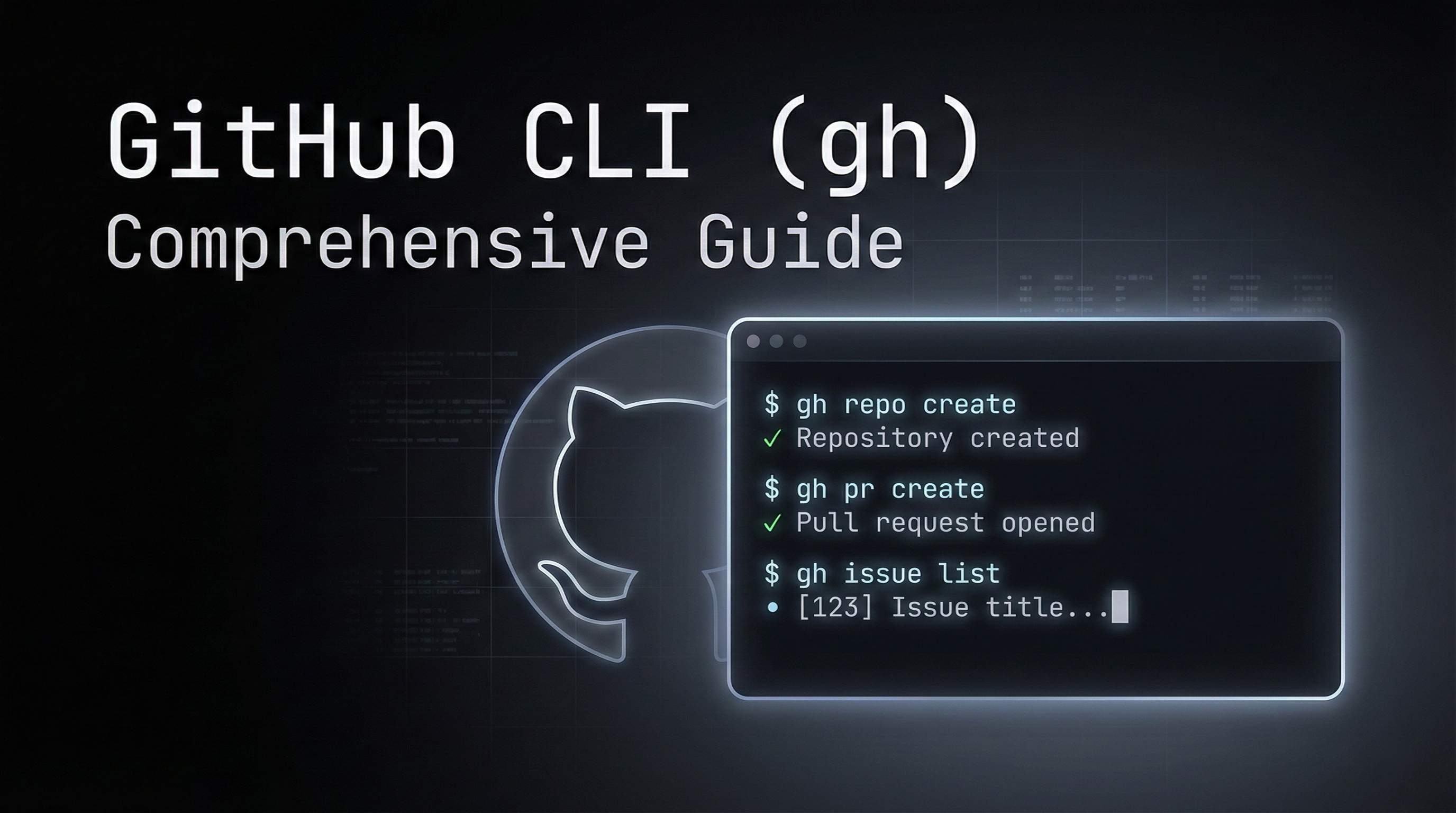
GitHub CLI, commonly known as gh, is an official command-line tool that brings GitHub's features directly to your terminal. It allows developers to interact with repositories, issues, and pull requests without needing to switch to a web browser, significantly streamlining development workflows.
Built and maintained by GitHub, the tool is cross-platform and works seamlessly on Linux, macOS, and Windows.
With GitHub CLI, you can perform a wide range of tasks directly from the command line:
To install GitHub CLI on Ubuntu or Debian-based systems, run:
sudo apt update sudo apt install gh -y On macOS, you can use Homebrew:
brew install gh For Windows users, installation is available via WinGet:
winget install GitHub.cli To ensure the CLI is installed correctly, check the version:
gh --version Authentication is required to interact with your GitHub account.
Execute the following command to start the authentication process:
gh auth login During the process, you will be prompted to choose:
To verify your current login status, use:
gh auth status Note: HTTPS is recommended for simplicity, while SSH is ideal if you already have SSH keys configured.
To create a new repository interactively:
gh repo create To create a repository non-interactively and push local code:
gh repo create my-repo --public --source=. --remote=origin --push To clone a repository to your local machine:
gh repo clone username/repository To fork a repository:
gh repo fork username/repository To fork and clone simultaneously:
gh repo fork username/repository --clone To view information about the current repository:
gh repo view To open the repository page in your default browser:
gh repo view --web To start an interactive issue creation process:
gh issue create To create an issue quickly with a title and body:
gh issue create --title "Bug in login" --body "Login fails on invalid token" List open issues:
gh issue list Filter issues by state:
gh issue list --state open View a specific issue by its number:
gh issue view 12 Use the --web flag to open the issue in your default browser:
gh issue view 12 --web Once an issue is resolved, close it using its number:
gh issue close 12 To create a pull request interactively:
gh pr create To create a pull request quickly:
gh pr create --base main --head feature-branch --title "Add login feature" --body "Implemented login logic" List active pull requests:
gh pr list View a specific pull request:
gh pr view 5 View a pull request with its comments and status checks:
gh pr view 5 --comments Checkout a pull request locally for testing:
gh pr checkout 5 To merge a pull request:
gh pr merge 5 You can specify a merge method:
gh pr merge 5 --merge gh pr merge 5 --squash gh pr merge 5 --rebase To see a summary of pull requests relevant to you:
gh pr status GitHub CLI can be extended with additional commands developed by the community.
gh extension install owner/extension-name gh extension list gh extension remove owner/extension-name Visit here: Extensions
gh extension install meiji163/gh-notify gh notify -s gh extension remove meiji163/gh-notify gh to automatically detect context.You can create custom shortcuts for frequently used commands:
gh alias set rl "repo list" Now, instead of gh repo list, you can simply run:
gh rl While GitHub CLI is powerful, certain tasks are still better suited for the web interface:
GitHub CLI is an essential tool for developers who prefer staying in the terminal. By mastering these commands, you can significantly reduce context switching and accelerate your development cycle. Try creating your next repository or pull request using gh to see the difference in your workflow.

Amitabh Soni
DevOps Engineer Intern at TrainWithShubham